

Tasks allow you to keep track of the multiple steps required during hiring or any personnel related process by assigning an internal stakeholder a task associated with a candidate or employee.
This allows you to see all actions required for the candidate to be cleared for hiring. You can set up manual tasks or automated tasks that are assigned every time a candidate is added to Robinform.
An example of using Tasks:
A candidate is added to Robinform to fill out a misconduct form for your state
You have created an automated task to assign a “Certification Check” to the HR colleague responsible for this step in the hiring process
The task is added to the candidate’s profile in Robinform and assigned to the designated colleague
Now you can track progress of the forms and tasks all in one place
How to set up tasks
Automated Tasks
To set up automated tasks, you will navigate to the “Admin” section of the dashboard, select “Tasks” and enter the details for the person who will be assigned and the name of the task. This short video shows exactly how:
Once you set up an automated task, it will be created every time a candidate is added to Robinform without requiring further action from you.
Manual tasks
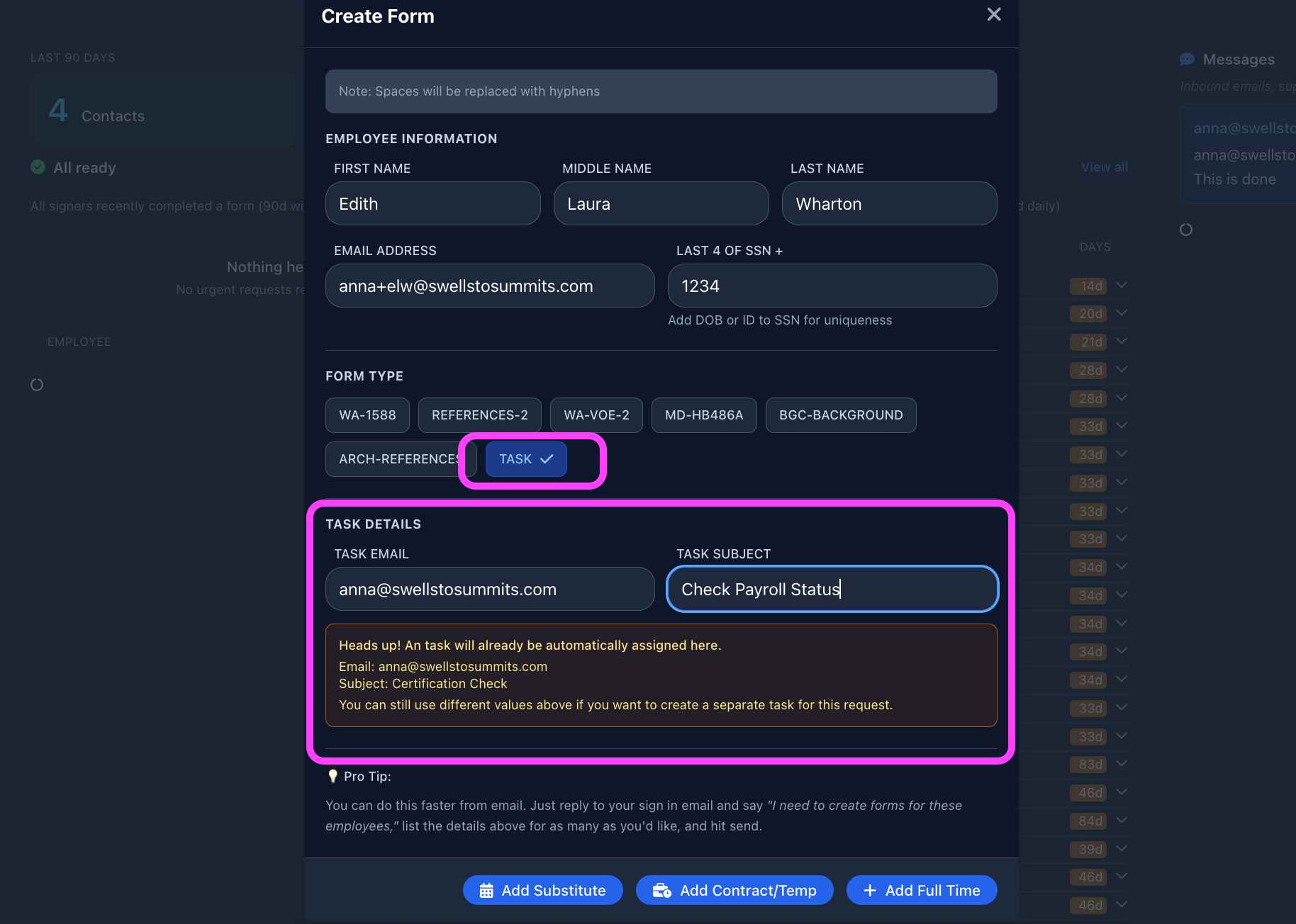
Setting up manual tasks is as easy as adding a new candidate via the dashboard. Simply select “Task” and enter the details. If an automated task has been set up, you can still add additional tasks this way.
Attach files and assign tasks to groups
From the Chat agent you can create groups (called Aliases) that will allow you to send tasks to the entire group instead of creating them one by one. This is a huge time saver, especially if you are repeatedly sending tasks to the same groups (i.e. Payroll, Finance, IT, etc.). Once the group Alias is saved, create the tasks using the Chat to assign to everyone in that group at the same time and attach files related to the task. Each person will get a notification with the file and you can track the status for each recipient. The video below demonstrates how:
Marking tasks complete
When a task has been completed, the assigned person will mark it as complete. It will show up on the dashboard as completed and no further action is needed. This short video shows how to mark tasks as completed:
That’s it! Thanks for reading and please let us know if you have any questions or feedback about using tasks in your organization.