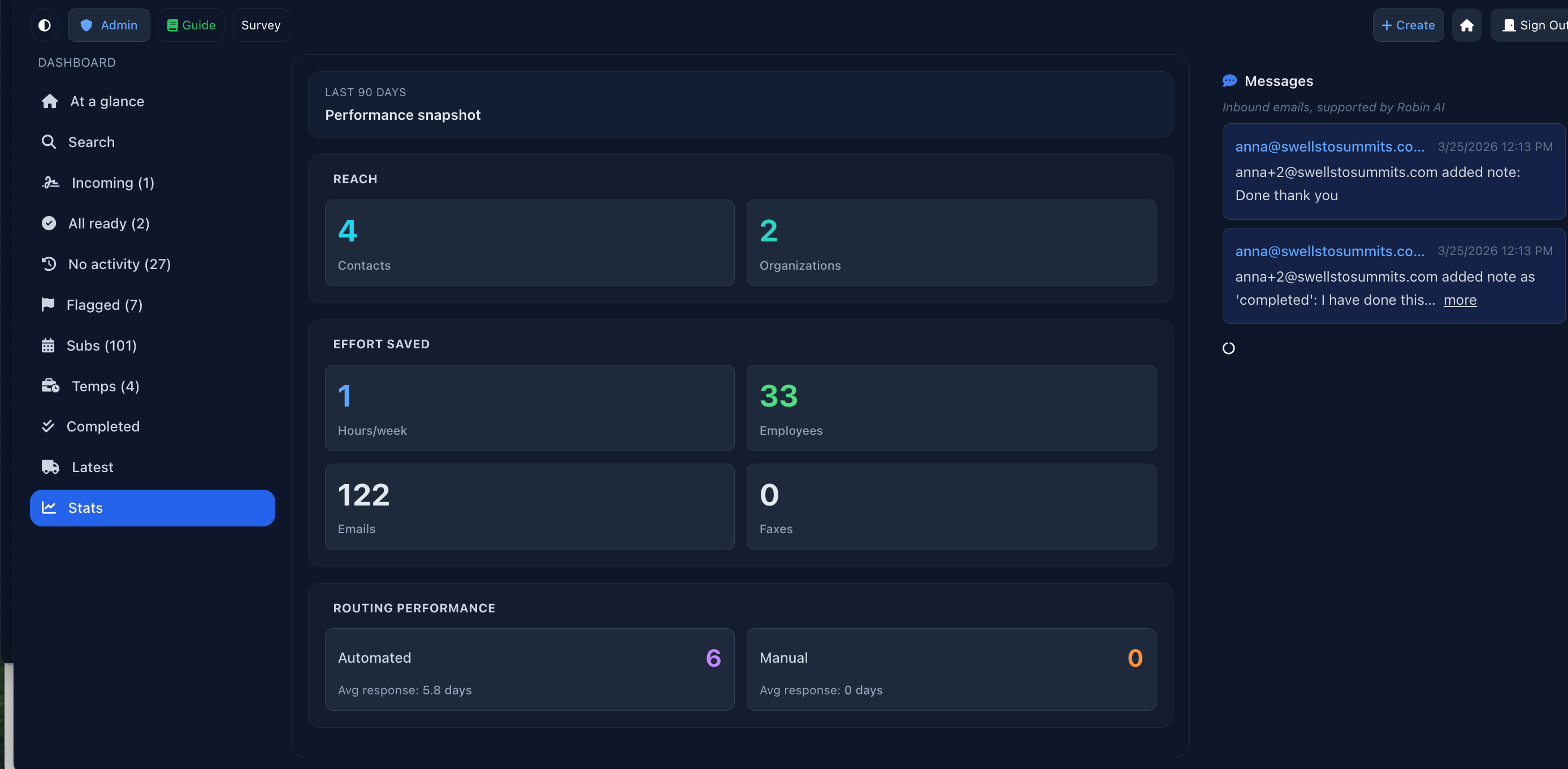
The Robinform dashboard makes it easy to manage forms by showing you exactly what you need to know right now.
When you sign into Robinform, you will see the “At a Glance” section on the main dashboard.
The two columns with forms are:
All Ready: this candidate has all forms completed. This person is “cleared” of this step in the onboarding process.
No Activity: these forms have had no activity for 3+ days. Consider sending manual outreach, or update the email address if necessary (ie. it shows a “bounced” symbol)
At the top of the page you will find several key stats including the number of employees (applicants/candidates) added, number of organizations you’ve sent forms to, and the number of contacts you’ve added. All information on the dashboard is for the past 90 days.
At a Glance
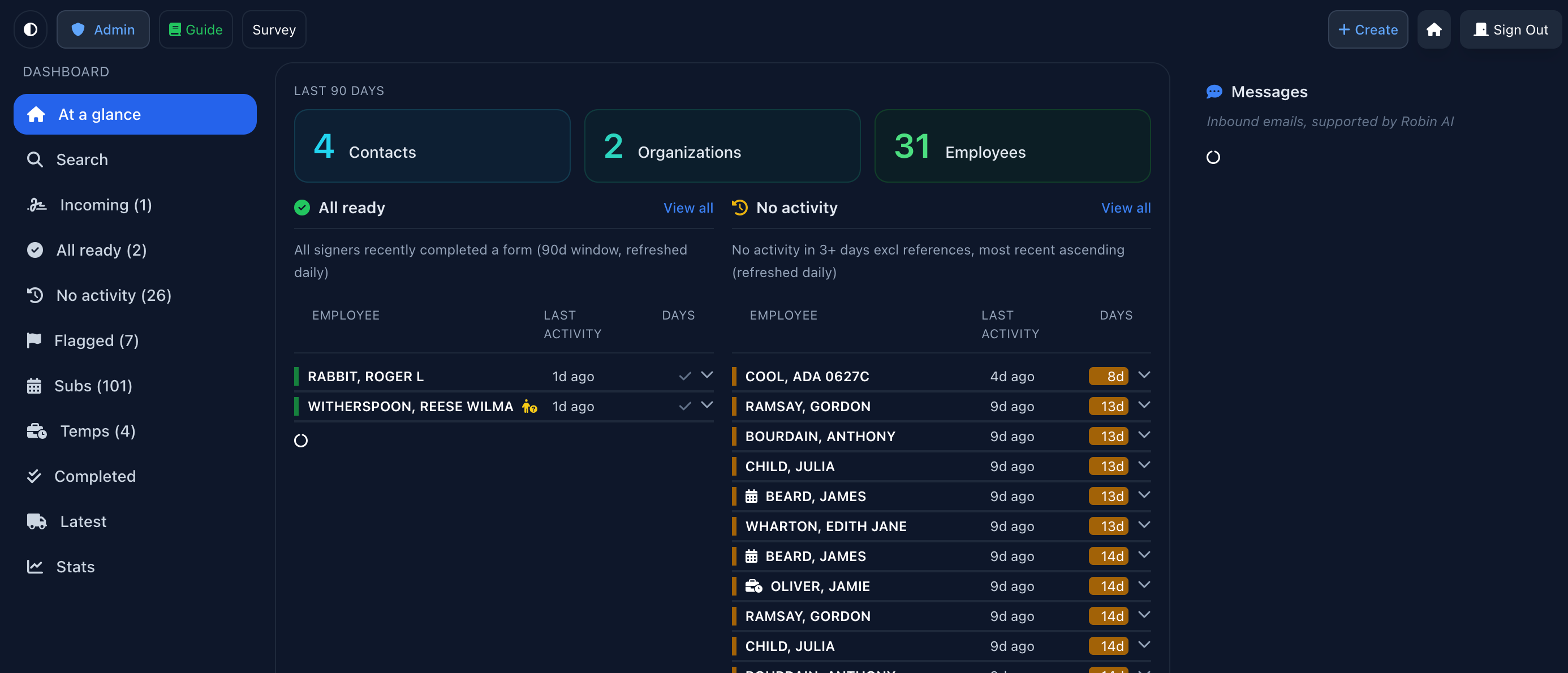
You can click into a name and see the details for the forms, right from this view, like Roger Rabbit in the image below:
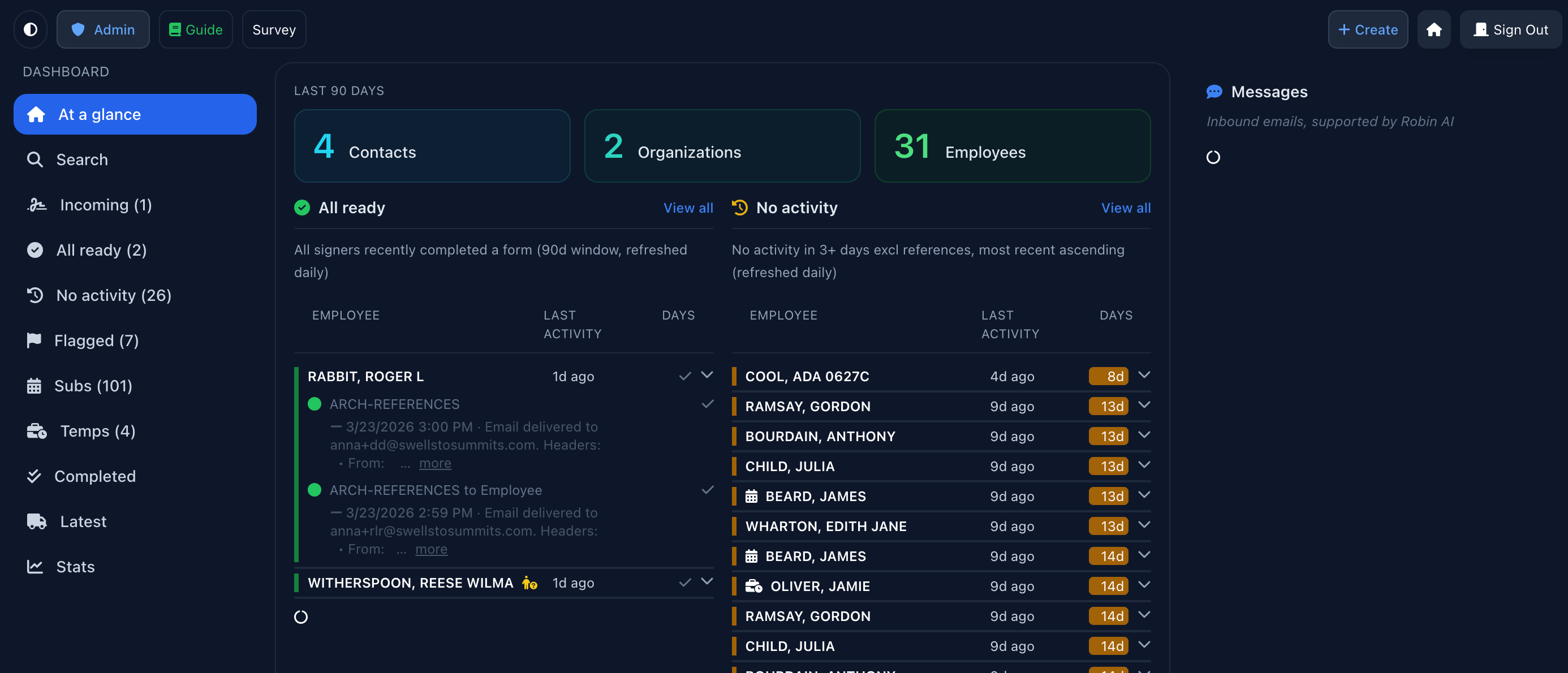
Messages
On the right hand side you will see all incoming messages to Robinform and any responses sent by RobinAI.
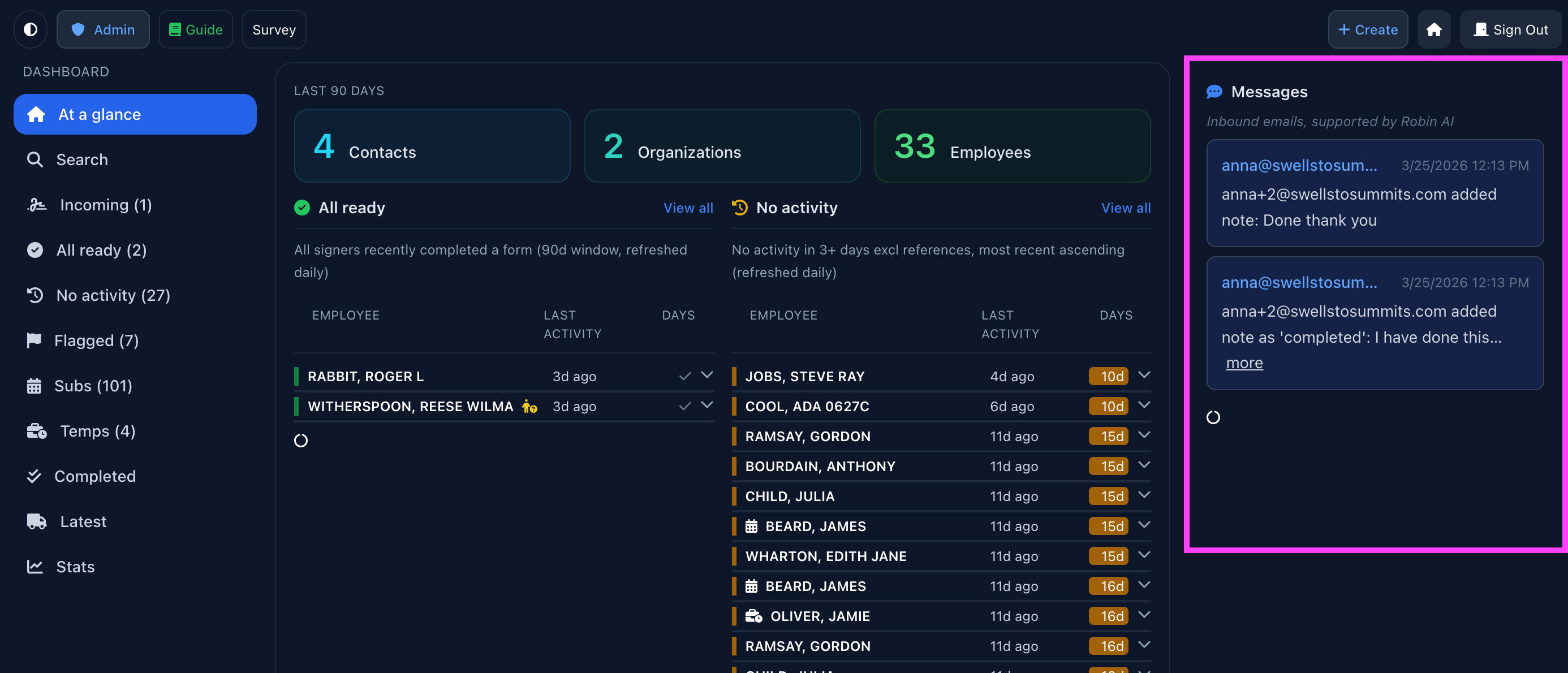
When you click on the message it will take you to the form it relates to, where you can respond directly from Robinform.
Filter by form
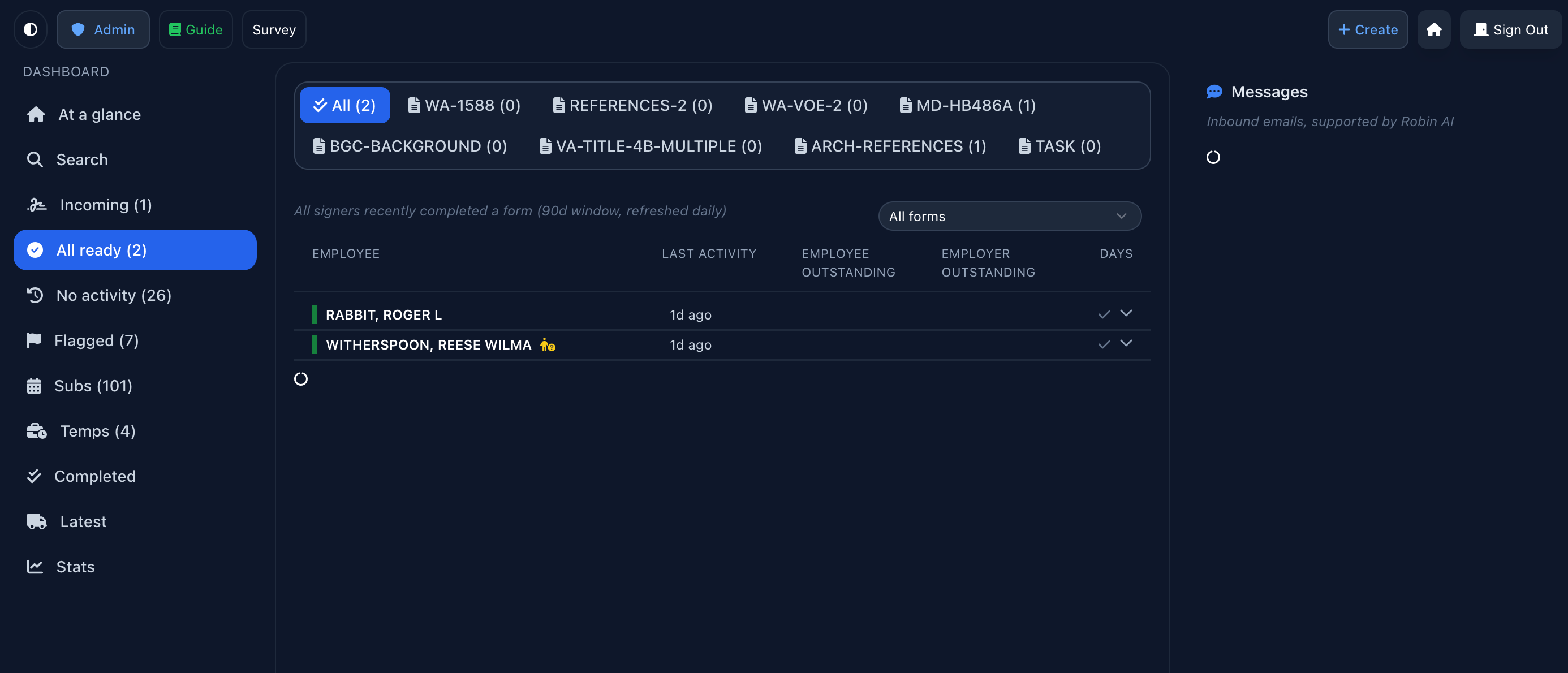
When you navigate to the “All Ready” section on the left hand menu, you can also filter by form:
The Latest
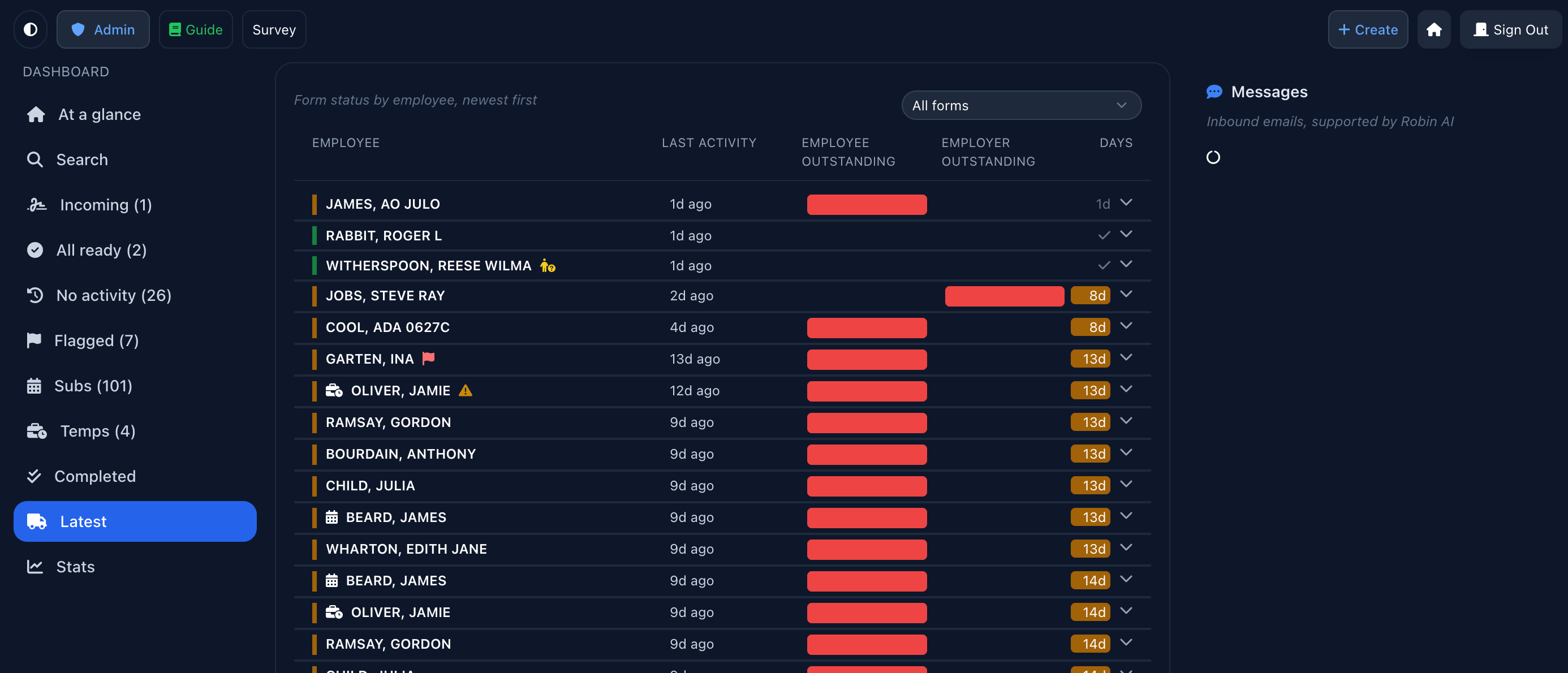
See a quick snapshot of the latest forms sent. All forms are organized by the employee’s name. You can quickly see the status of specific forms for employees, whether you are waiting on the employee to complete their information or waiting for a response from past employers.
Once all forms are complete, the color next to the employee’s name will turn green, indicating there are no outstanding forms.
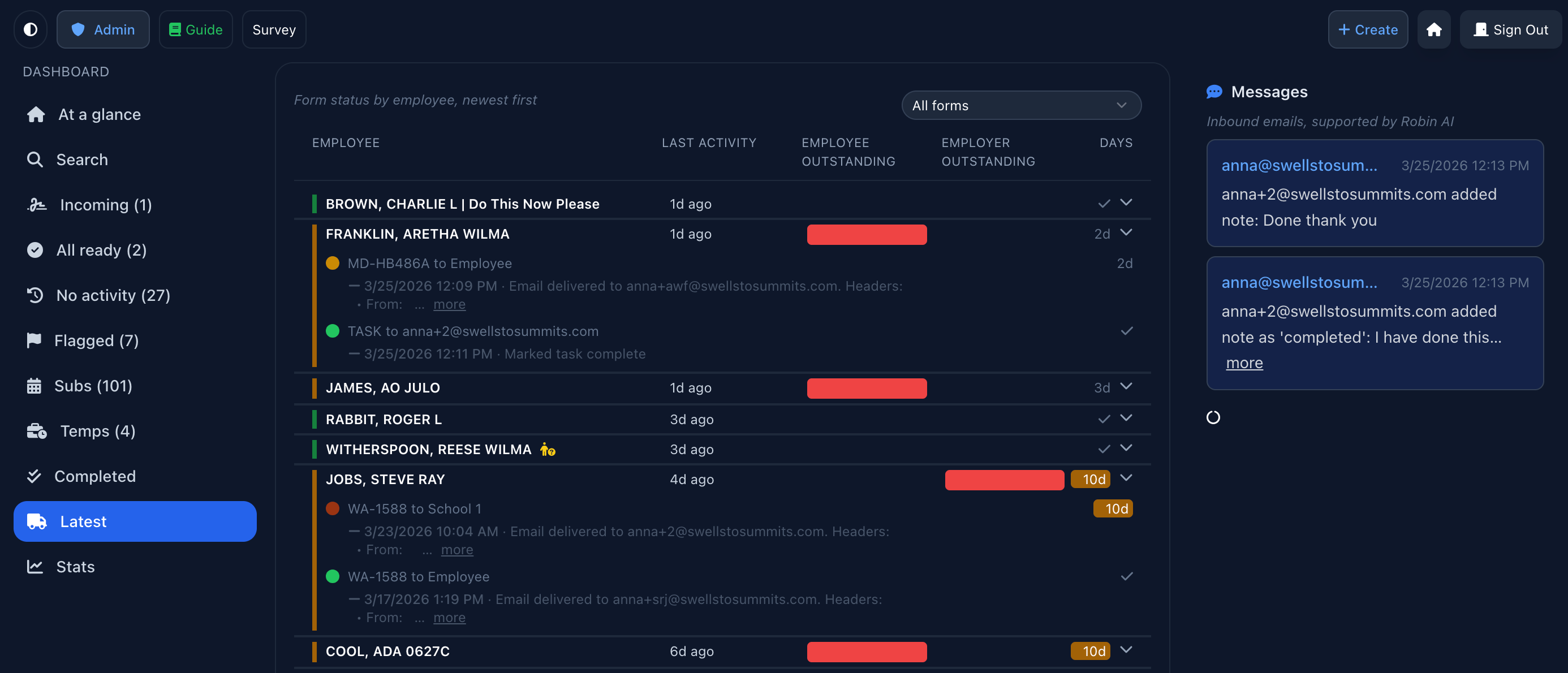
If you click on an employee name, you can view the details about the forms that were sent (what employers have received forms, whether they have been signed yet, see the latest activity on the log).
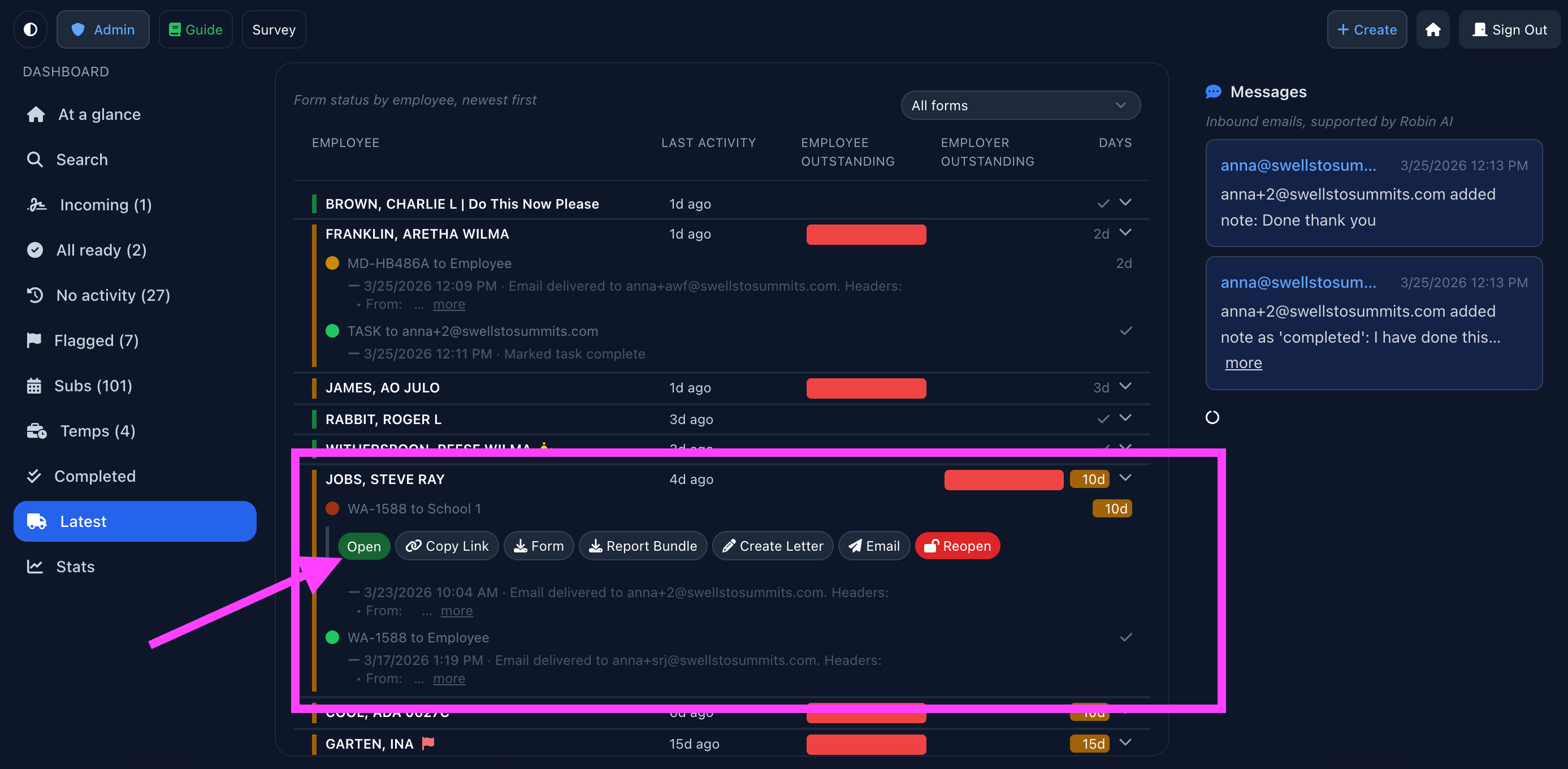
If you click on a form for an employee, and select “Open”, you will go to the detailed form page to see the logs, edit contact information, schedule manual follow-ups, etc.
Search
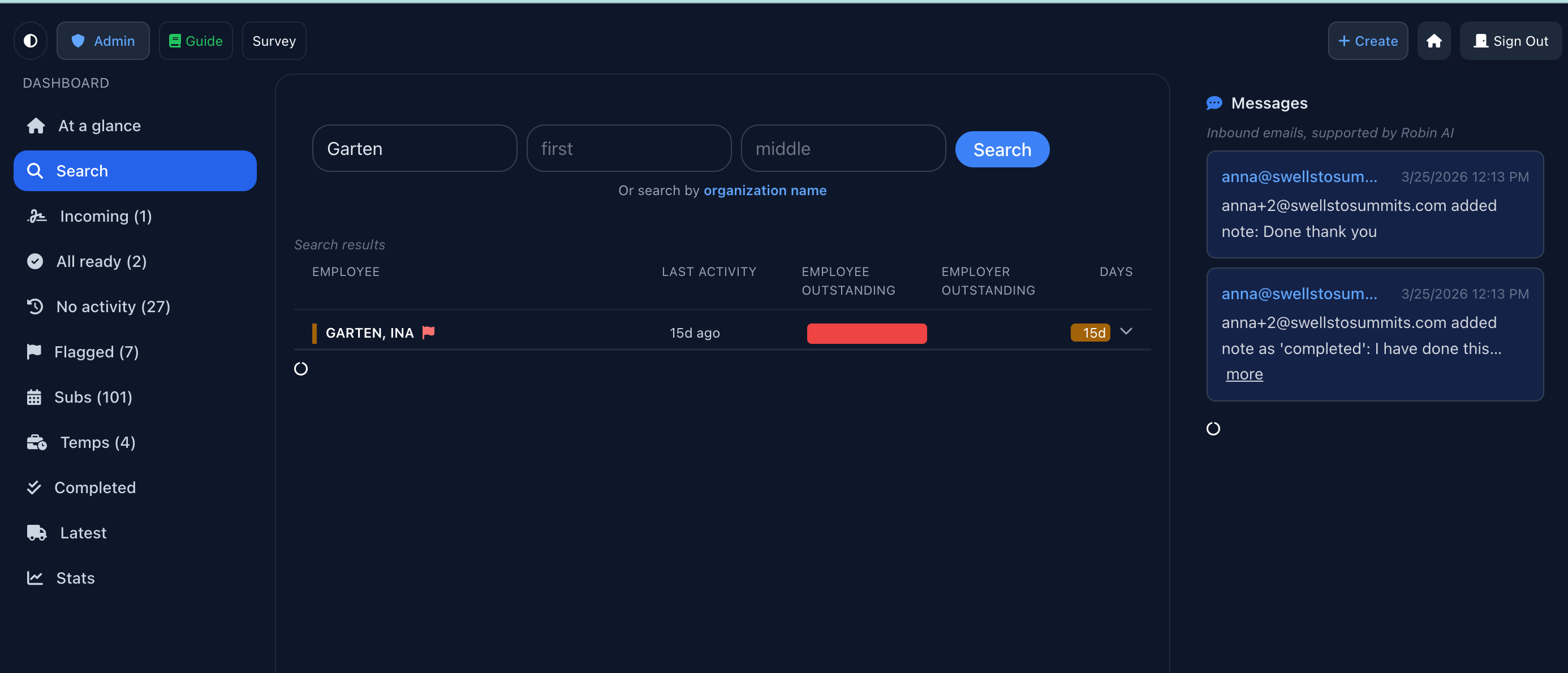
To search for a specific employee name or organization, go to the search tab and type in the name you are looking for. You will see the topline information for that person and can drill down further by clicking on their name.
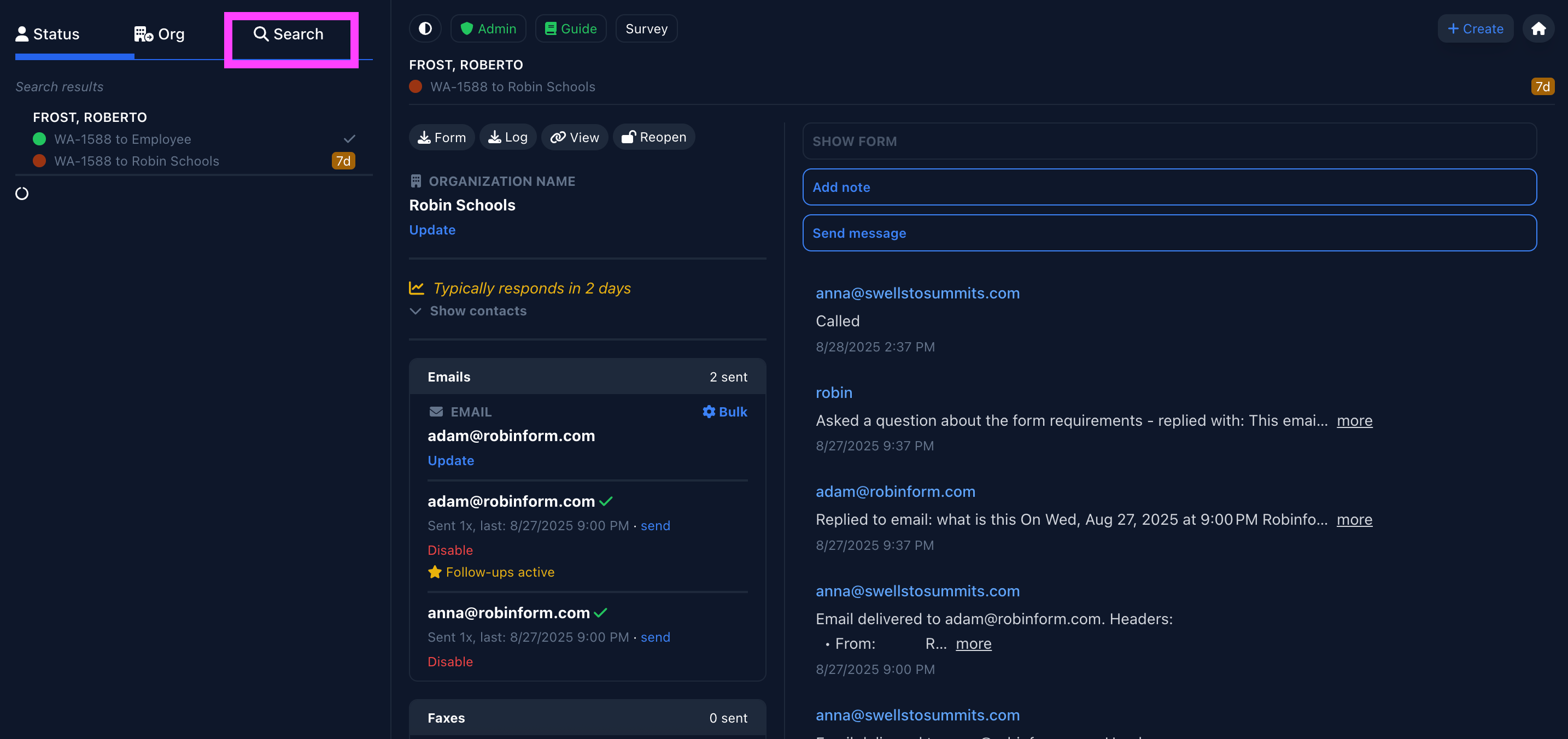
You can also access search if you’re viewing an employee’s record (without having to navigate back to the home screen):
Flagged
See all flagged forms.
Subs and temp/contractor
See employees that are marked as substitutes or temps/contractors. This is helpful for re-sending forms to subs each school year, as required by some states.
Incoming
If you are a signer, you can toggle to “incoming” to see the forms that your org needs to sign for past employees.
Stats
To drill down into your team’s workload, the stats tab shows key metrics including reach (how many orgs you’ve sent forms to); effort saved; and routing performance by Robinform (automated contacts vs. manual).