

It’s easy to re-open forms if a candidate or employee needs to add more information.
When would you use this feature? There are three common scenarios:
A candidate needs to add more employers: The link to the form “locks” after 3 days, so if a candidate needs to make any additions to their information or employment history you’ll need to reopen the form.
Substitute teachers: Many states and districts require substitutes to fill out the misconduct form each year, in order to capture any new districts they have worked at during that previous school year.
Returning employees. If an employee left your district for a few years and is returning, you don’t have to add them into Robinform again. You can simply reopen their record and re-send the form to them to fill out.
How to re-open a form
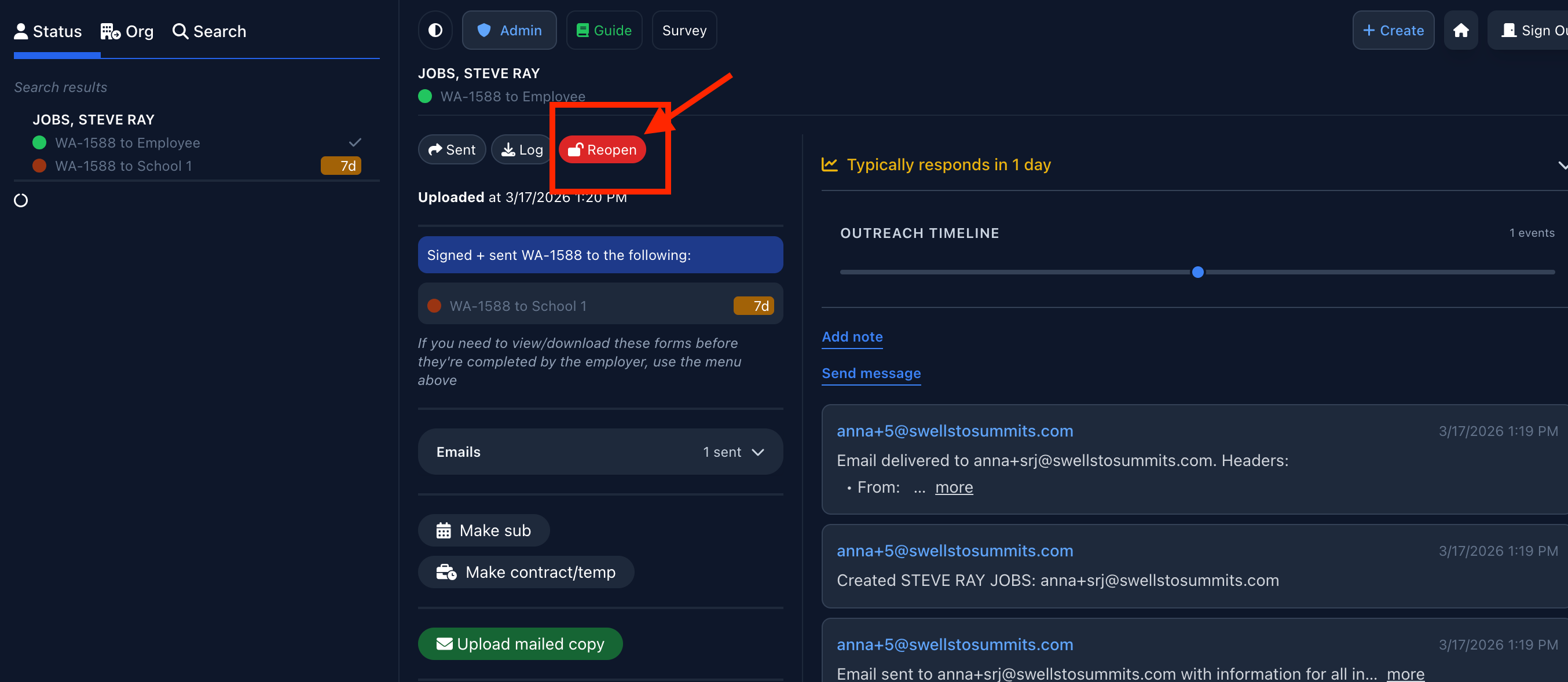
From the employee’s profile:
If you search for an employee and click into their profile, you’ll find the “reopen” button at the top of the page for the specific form you wish to resend. Click this and they will get an email from Robinform with a new link to fill out the form.
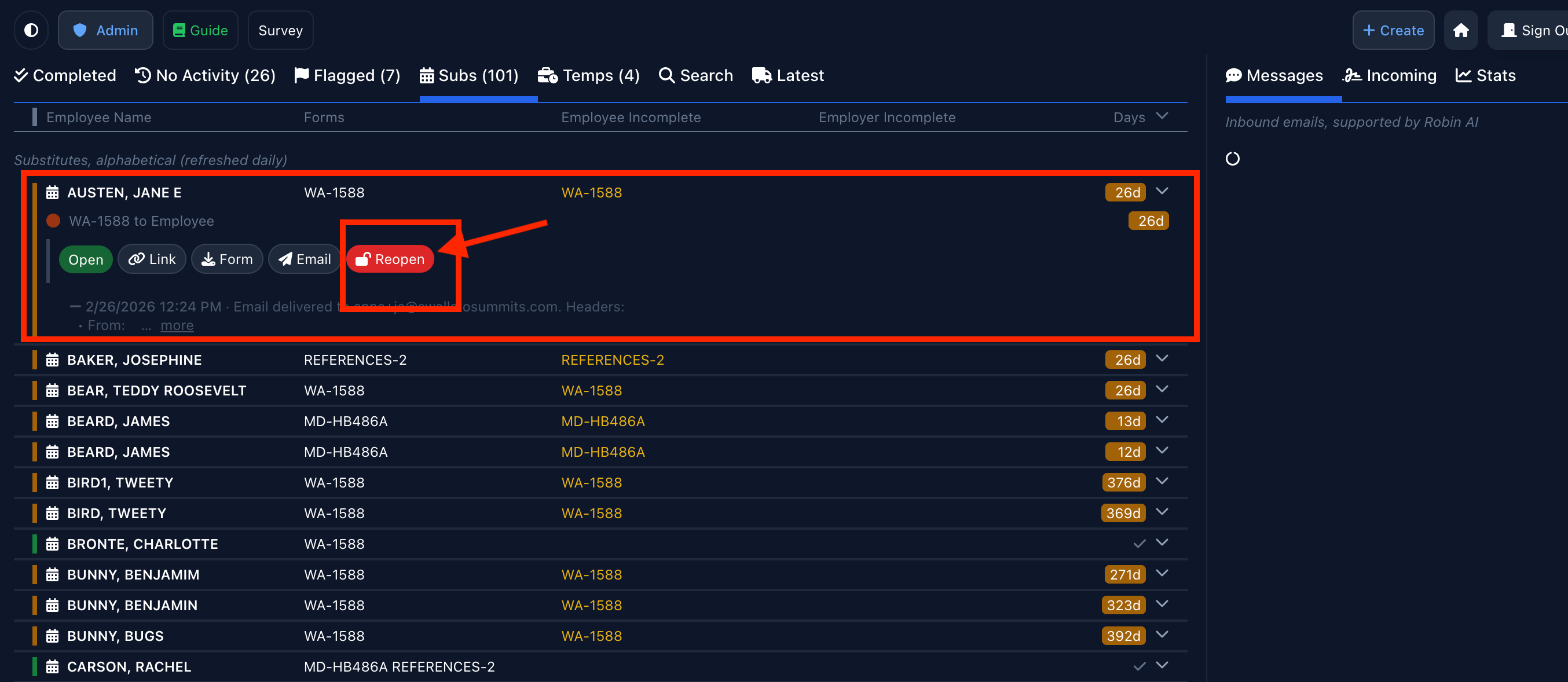
From a report (i.e. “completed” or “Subs”):
You don’t have to open the employee’s profile in Robinform to reopen their form. Simply click the name, select the form and then click reopen. This is especially useful when you’re resending forms to multiple employees at once from a report (i.e. substitute teachers):
If you have any questions about how to re-open forms for employees, email help@robinform.com
[updated March 2026]
When a form is re-opened, does it automatically send to the employee again?