

When you send a form via Robinform, the recipient gets an email explaining what the form is and what they need to do. Each form includes default text for the emails sent to candidates and past employers, but if you wish to customize the instructions or set specific expectations for your district, you can do so. This can help eliminate confusion and make sure everyone is on the same page with your organization’s requirements for specific forms.
Customizing the emails in Robinform
Here’s how you can customize the emails.
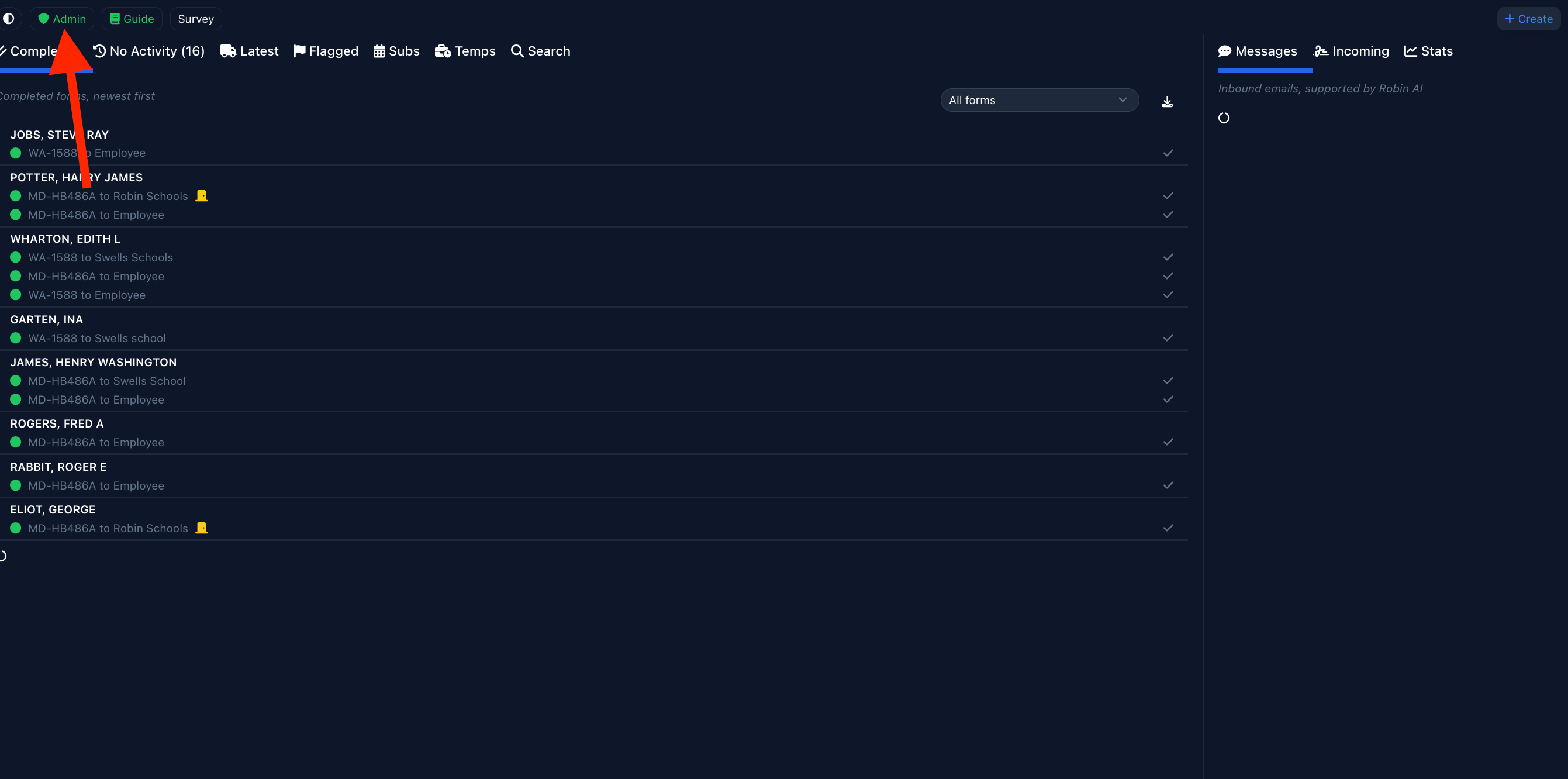
First, navigate to the admin settings, by clicking “Admin” or “User” in the upper left hand corner of your dashboard.
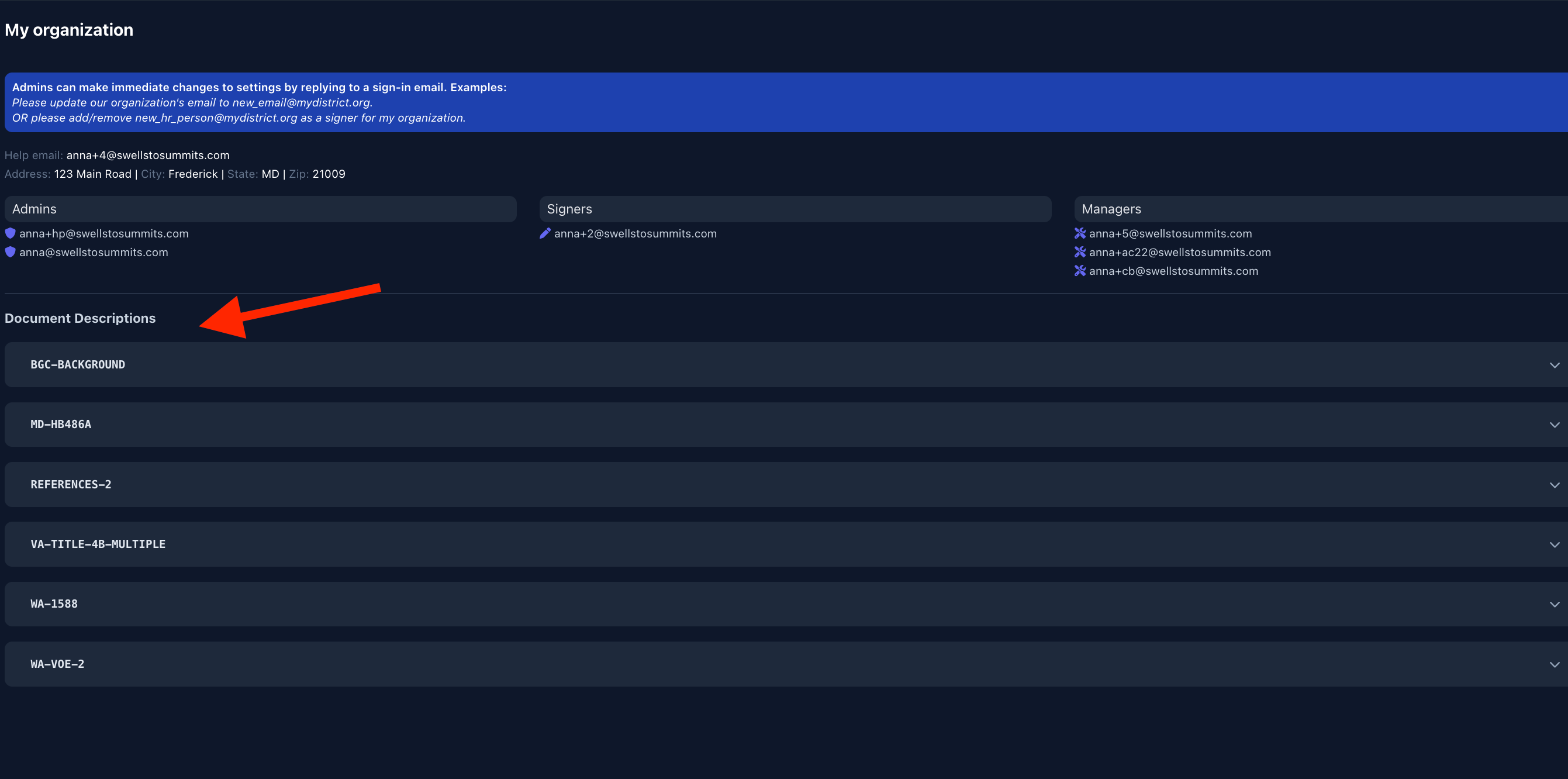
Then, select the form you wish to customize the email for:
Once selected, you can edit the text in the “Employee Description”, which is what your candidates or employees see. You can also customize the “Signer Description”, which is what signers will see (i.e. past employers). Hit “Save” at the bottom to save the custom changes.
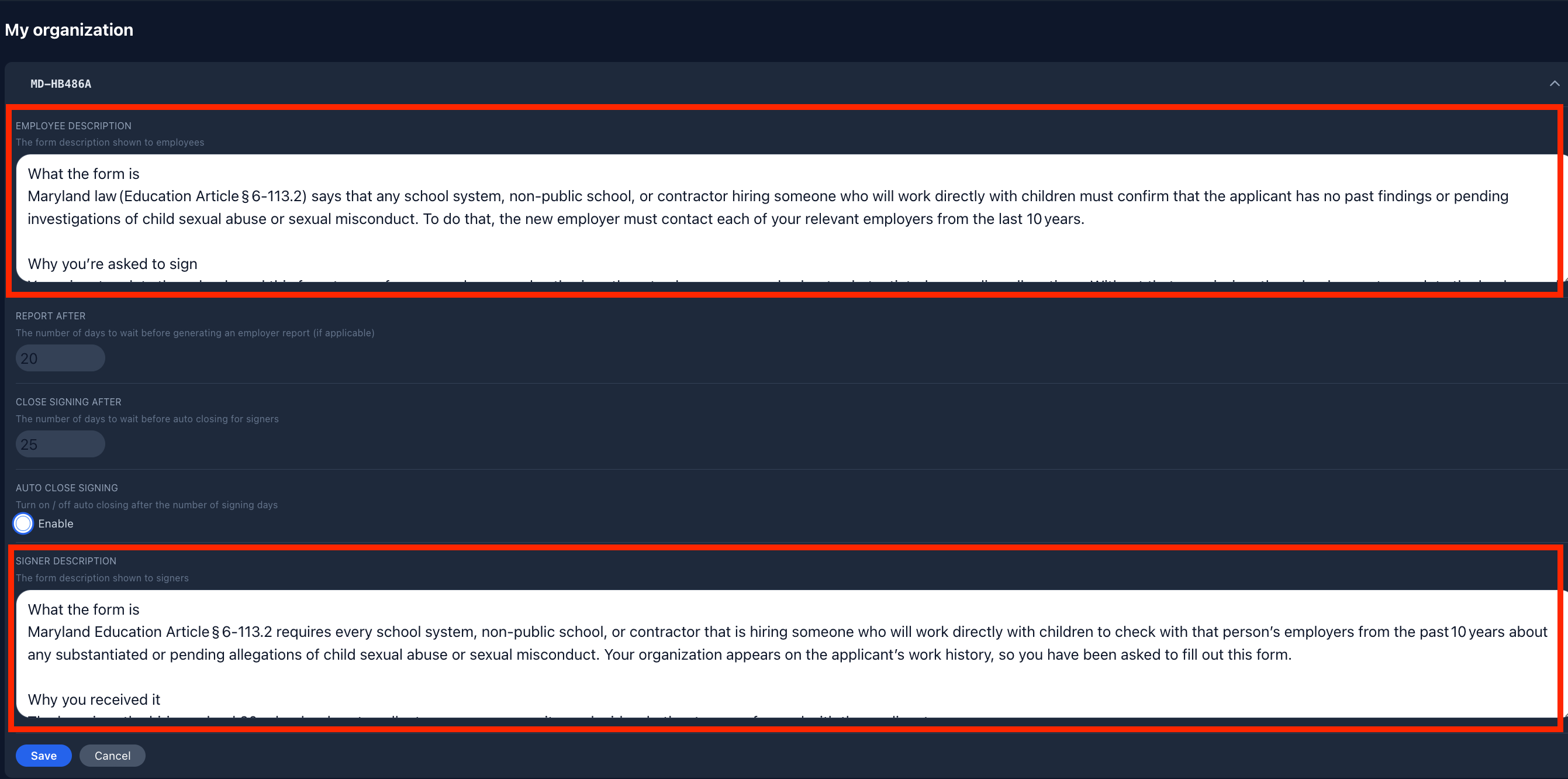
Important note: Once you save the changes, the email text is updated for all future emails sent.